 naparoPrivacyTermsHow it worksSupportΕΛ
How it works
Seven steps to get started with naparo.
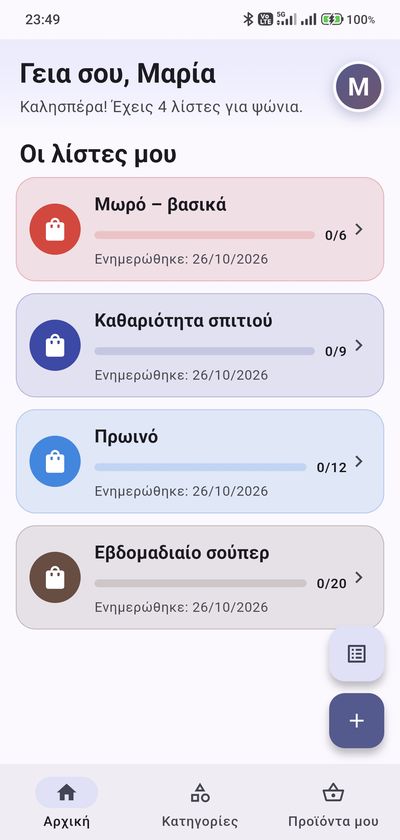
1. Create a list
On the home screen tap + and give it a name, icon and colour. If you don't want to start from scratch, tap the list button next to it and pick a suggested list (e.g. "Weekly supermarket").
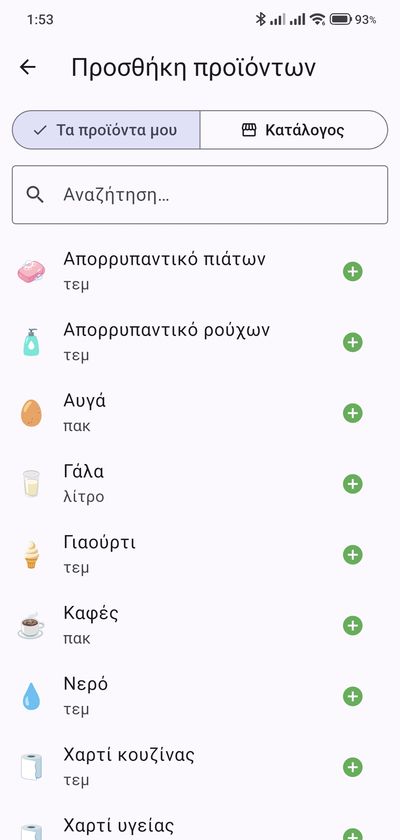
2. Add products
Inside the list tap + and choose From my products & catalog. Pick from My products (things you have used before) or from the Catalog, search by name and tap the green + next to the product. If it doesn't exist, choose New product and enter a name, quantity and unit. On Android you can also scan its barcode.
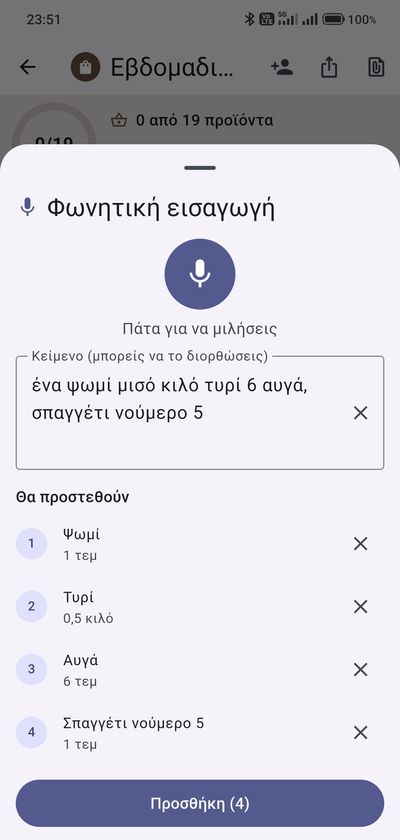
3. Say it out loud
Tap +, choose Voice input and say e.g. "milk, 2 kg potatoes and a bread". naparo splits it into separate products with quantities and units, and before anything is added you can correct the text or remove products.
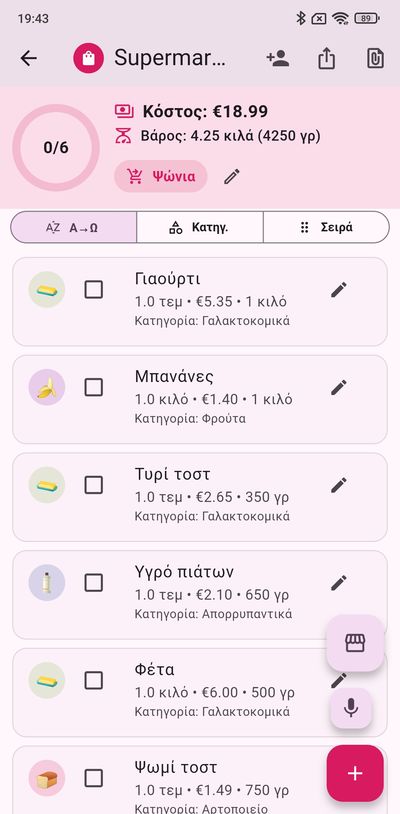
4. See cost and weight
If you add a price and weight to your products (optional), the list shows the total cost and weight of your basket before you go shopping. Sort by A→Z, by category or in your own order.
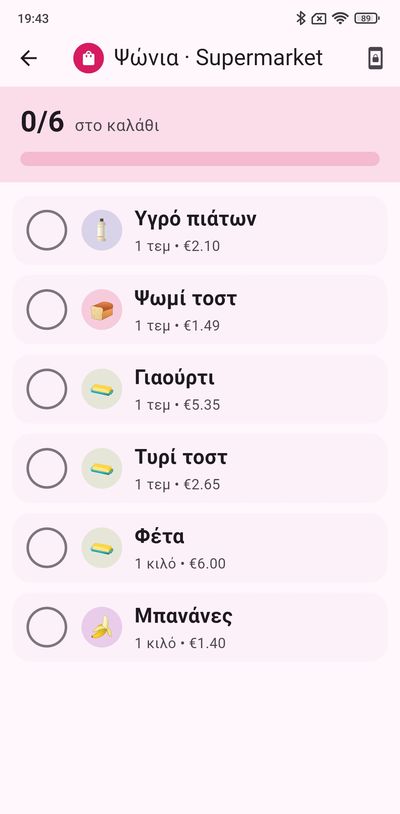
5. Shopping with big buttons
At the supermarket tap Shopping: a large, clean list where you tick each product with one tap, with a progress bar. You can keep the screen on while shopping from Settings.
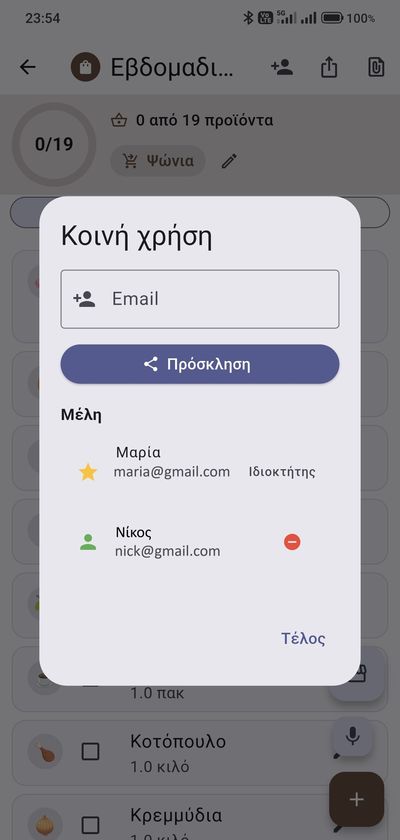
6. Share the list
Tap the add person icon in the list and enter the member's email. They must have signed in to the app once and verified their email. Everyone sees the changes in the same list.
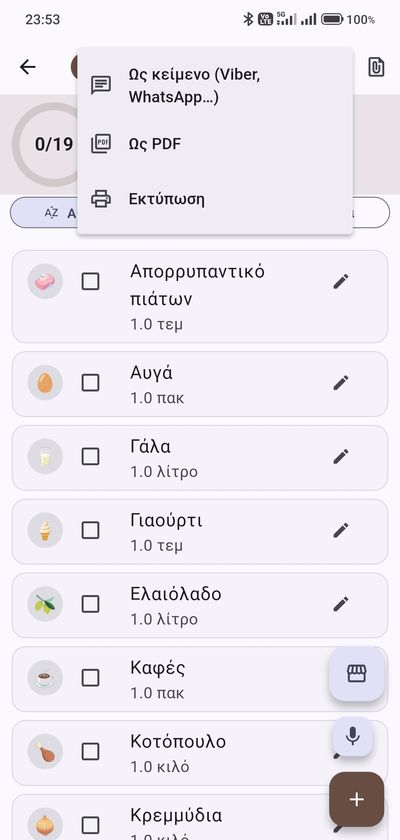
7. Send or print the list
Tap the arrow ⤴ and choose As text (Viber, WhatsApp, SMS), As PDF with checkboxes to tick with a pen, or Print (mobile only). The recipient doesn't need naparo.
The screenshots show the Greek version of the app; the English version has the same screens.
Need help?
See the frequently asked questions or write to support@naparo.gr.